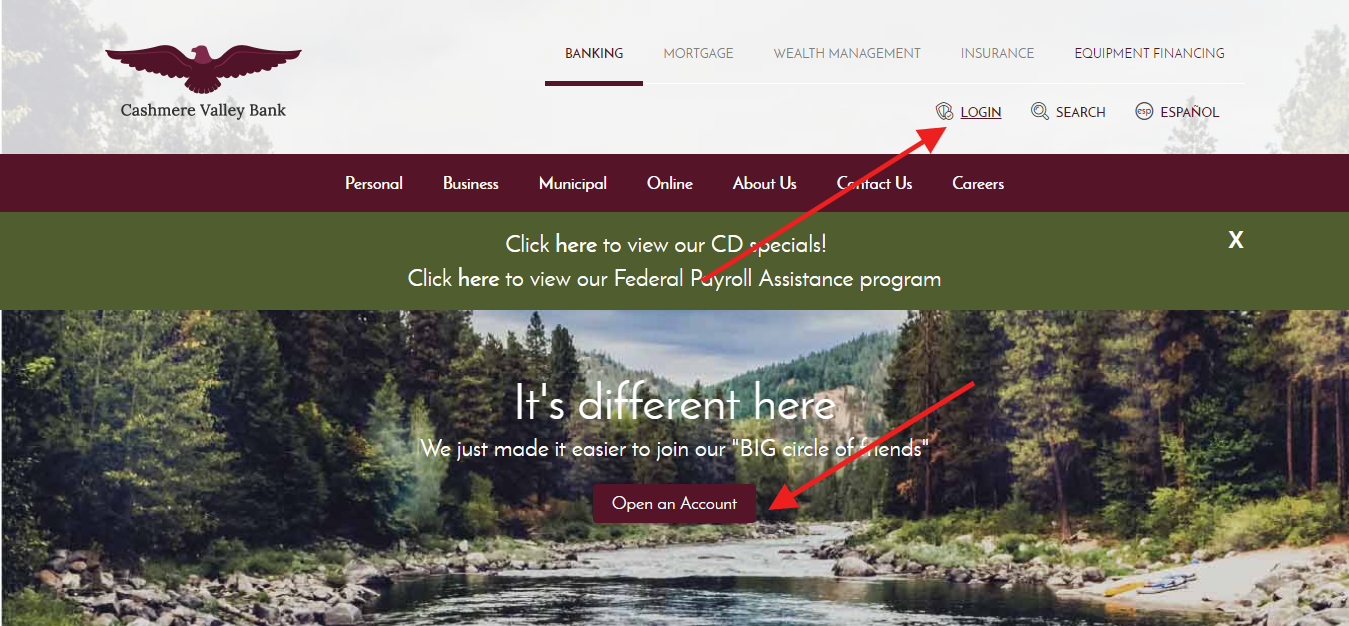
Cashmere Valley Bank Log In uses CVB Online Banking or the CVB Mobile app. Online Banking provides real-time account access around the clock, while Mobile Banking requires an existing Online Banking enrollment. Both services require a User ID, password and two-factor authentication. Use the service already associated with the account rather than an old screenshot or third-party login page.
Choose the correct service
- Browser access: choose Online Banking and enter the enrolled User ID.
- Phone or tablet: use only the CVB Mobile app downloaded from the Apple App Store or Google Play Store.
- Debit-card controls: open Card Management inside Online Banking or CVB Mobile.
- Do not use an old screenshot, saved advertisement or third-party login button to choose a destination.
- Never enter a password, card number or security code into this independent guide.
How to Log In
Start from Cashmere Valley Bank’s current official website or the installed CVB Mobile app. Select the appropriate account-access service, enter the enrolled User ID and password, then complete the two-factor authentication requested by the bank. A new device produces an email alert, and the profile’s device list can be reviewed to remove devices that are no longer used.
CVB Online Banking
- Start from Cashmere Valley Bank’s current official website or installed mobile app.
- Choose Online Banking from the bank’s account-access controls.
- Enter the enrolled User ID and password.
- Complete the two-factor authentication generated by that session.
- Confirm the expected balances, transactions and destination before making a transfer or bill payment.
- Sign out when the banking work is complete.
CVB Mobile
- Enroll in Online Banking before attempting Mobile Banking access.
- Install the app titled CVB Mobile from the official device store.
- Enter the same enrolled User ID and password.
- Complete the two-factor authentication for the mobile session.
- Review balances, transactions, transfers, bill payments and configured alerts.
- Sign out and remove an unfamiliar device from the profile.
First-Time Access and Password Recovery
Cashmere Valley Bank provides an Online Banking enrollment form and agreement. The bank says it sends confidential Online Banking IDs and passwords after receiving the completed enrollment. Existing users can select Forgot Password from the official access area. Stop guessing after a careful failure: three incorrect User ID or password attempts lock Online Banking.
- Choose enrollment only when no Online Banking profile already exists.
- Complete the bank’s current enrollment form and agreement.
- Provide identity and account details only inside the protected official process.
- Create an 8–20 character alphanumeric password known only to you.
- Select Forgot Password after one careful failed attempt instead of guessing.
- Contact Electronic Banking when recovery fails or the profile is locked.
- Review contact details, devices and recent activity after access is restored.
Known Issues & Common Problems
Most Cashmere Valley Bank Log In problems involve credentials entered in the wrong service, failed two-factor authentication, an outdated app or a lockout after three incorrect attempts. Identify the exact failed step before changing credentials, and remember that an idle Online Banking session terminates automatically after ten minutes.
Two-factor authentication fails
Confirm that the contact details and device belong to the enrolled profile. Do not approve a verification request you did not initiate. Contact Electronic Banking when the official session cannot complete verification.
The profile is locked
Three incorrect User ID or password attempts lock Online Banking. Stop trying and use the official recovery option or call the bank instead of creating more failed attempts.
A transfer or payment is not visible
Check the destination, confirmation and processing date before submitting anything again. Use the secure message center or Customer Support when the first transaction’s status remains unclear.
A debit card shows unusual activity
Deactivate the card in Card Management when access is available, then call Cashmere Valley Bank immediately. Record the merchant, amount, date and card ending digits without sending the full number by email.
Troubleshooting Tips
Work from the service and exact failed step. A rejected password, two-factor failure and outdated app require different checks, so avoid changing several settings at once.
- Confirm whether the problem is in CVB Online Banking or CVB Mobile.
- Retype credentials instead of accepting an old browser suggestion.
- Check that the device date, time and internet connection are correct.
- Close old sessions before trying a private browser window.
- Update the official mobile app before checking CVB Mobile.
- Use Forgot Password after one careful failure instead of guessing repeatedly.
- Record the exact error and time before contacting support.
- Review recent activity after access returns.
Security Tips
Protect the User ID, password and every two-factor authentication request. Cashmere Valley Bank says representatives will never ask for a password, and unexpected callers will not ask for full Social Security numbers or account numbers.
- Do not share a User ID, password or two-factor authentication code.
- Never disclose a full card number or security code to an unsolicited caller.
- Do not sign in through an unexpected email or text link.
- Review the profile’s device list and remove devices no longer used.
- Enable transaction and fraud alerts when available.
- Expect the bank to end an idle Online Banking session automatically.
- Keep the bank informed of the current mobile number and email.
- Report a lost card or unauthorised transaction immediately.
Contact Customer Service
Cashmere Valley Bank separates general support, Electronic Banking and card reporting. Use a known published number, and use the secure Online Banking message center rather than ordinary email for sensitive account information.
- Customer Support: 509-665-1070 or 800-860-0845.
- Electronic Banking: 509-664-5454 for Online Banking and Mobile Banking help.
- Debit card department: 509-664-5453 during the bank’s published service hours.
- Lost or stolen debit card after hours: 888-297-3416.
- Credit card department: 509-664-5455.
- Use the number on the back of the current card when it differs from an older guide.
- Never send passwords, PINs, full account numbers or complete card numbers through ordinary email.
Related Washington Banking Guides
- Baker Boyer Bank login guide for another Washington bank.
- Banner Bank login guide for another Walla Walla banking service.
- Washington Banking Company guide for another state-based institution.
- Washington Federal login guide for another regional service.
- Washington Trust Bank guide for a Spokane banking service.
- First Federal of Port Angeles card guide for another Washington financial institution.
Frequently Asked Questions
Where do I sign in to Cashmere Valley Bank?
Use the bank’s current CVB Online Banking service or the official CVB Mobile app.
How do I enroll in Online Banking?
Complete Cashmere Valley Bank’s current enrollment form and agreement. The bank says confidential IDs and passwords are sent after it receives the enrollment.
Does CVB Mobile require Online Banking?
Yes. Cashmere Valley Bank says clients must be enrolled in Online Banking before accessing Mobile Banking.
How do I reset my password?
Select Forgot Password in the bank’s official account-access area. Call Electronic Banking at 509-664-5454 when recovery fails.
What happens after three failed sign-in attempts?
Three incorrect User ID or password attempts lock the Online Banking profile.
How do I report a lost debit card?
Deactivate it in Card Management when possible, then call 509-664-5453 during service hours or 888-297-3416 after hours.
Does Cashmere Valley Bank use two-factor authentication?
Yes. Two-factor authentication is required for CVB Online Banking and CVB Mobile.
Does this page provide a login link?
No. This independent guide explains the official service without collecting credentials.
Summary
Cashmere Valley Bank Log In uses CVB Online Banking or CVB Mobile with an enrolled User ID, password and two-factor authentication. Mobile Banking requires prior Online Banking enrollment. Use Forgot Password before repeated attempts lock the profile, and call Electronic Banking at 509-664-5454 when access cannot be restored.
- Use the current official Cashmere Valley Bank service.
- Approve only authentication requests you initiated.
- Review and remove unfamiliar devices.
- Use recovery instead of repeated password guesses.
- Deactivate and report compromised cards immediately.
Independent guide: This page is an independent informational guide. It does not provide a login form, does not provide direct login links, does not request passwords or card details, and does not collect banking data. Use official service channels directly, including the number on the current card or Cashmere Valley Bank’s verified support.
Last Updated on July 29, 2026
URL: https://log-in.me/cashmerevalleyfinancialcorporation-cashmere-washington-unitedstates/