Navy Federal nRewards Credit Card Log In now belongs to the renamed cashRewards Secured account. Navy Federal changed the nRewards card name and reward type on April 2, 2025; existing points were converted to cash rewards, while account access continues through Navy Federal Digital Banking.
Use the newest card or statement to confirm the current cashRewards Secured name and account ending. Sign in with the Navy Federal username and password, select the matching credit card, and use the card view for payments, statements, rewards and card controls.
How to Log In
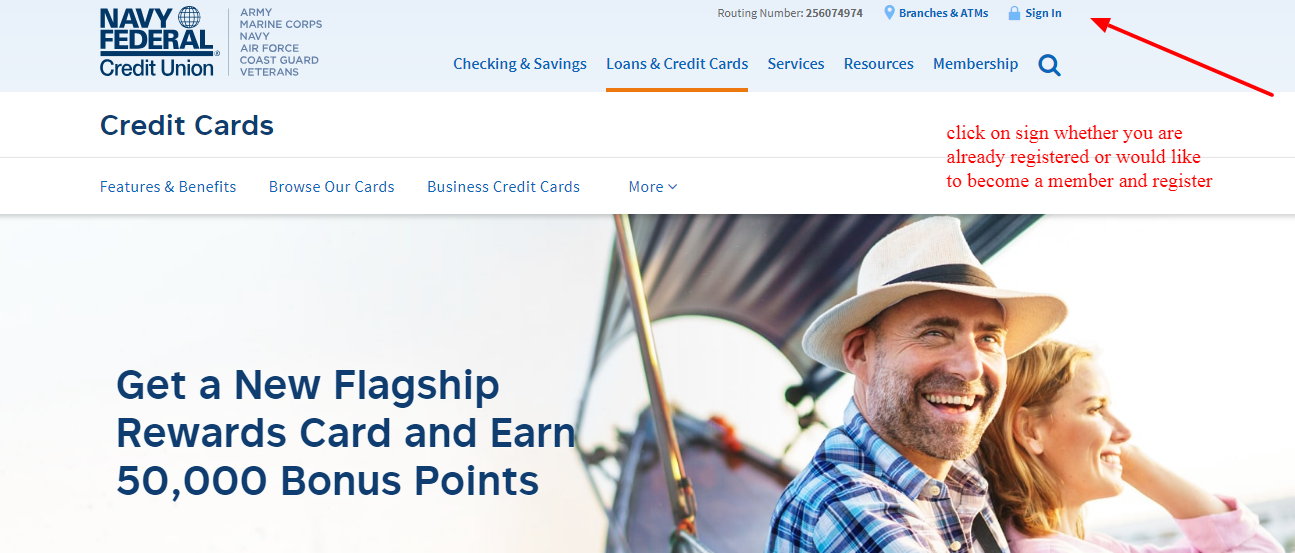
For Navy Federal nRewards Credit Card Log In, do not search for a retired nRewards portal. Open Navy Federal Digital Banking in a browser or the Navy Federal mobile app and use the current cashRewards Secured account that replaced nRewards.
Navy Federal Digital Banking
- Type the Navy Federal address yourself and choose Sign In.
- Confirm the page identifies Navy Federal Credit Union.
- Enter the unique Digital Banking username and current password.
- Complete additional verification only for a session you initiated.
- Open the Cards or Accounts area after sign-in.
- Select the cashRewards Secured account matching the card ending.
- Review balance, due date, activity and payment status before taking action.
Navy Federal mobile app
- Install or open the current Navy Federal app from the official app store.
- Use the same Digital Banking username and password.
- Complete trusted-device or verification prompts only when expected.
- Select the current cashRewards Secured credit card.
- Use Manage Cards for card controls and the account view for payment or rewards.
- Confirm an instruction is pending or completed before repeating it.
- Use biometric access only on a device you control.
nRewards Became cashRewards Secured
Navy Federal’s program notice says the nRewards card name changed to cashRewards Secured on April 2, 2025. Before that date the account earned one point for each $1 of eligible net purchases; from that date it began earning 1% cash back per $1 of eligible net purchases.
The notice also says existing points were converted to an equivalent cash-rewards balance. This is a product-name and reward-format transition, not a reason to create a second membership or card login. The newest Digital Banking account and statement are authoritative.
- Look for cashRewards Secured in the current card list.
- Match the account ending with the newest card or statement.
- Do not apply again merely because the nRewards name disappeared.
- Review the converted cash-rewards balance in the current account.
- Use current disclosures for reward eligibility and exclusions.
- Keep old statements only as historical records.
- Ask Navy Federal when an expected converted balance is missing.
Enroll and Recover Digital Banking Access
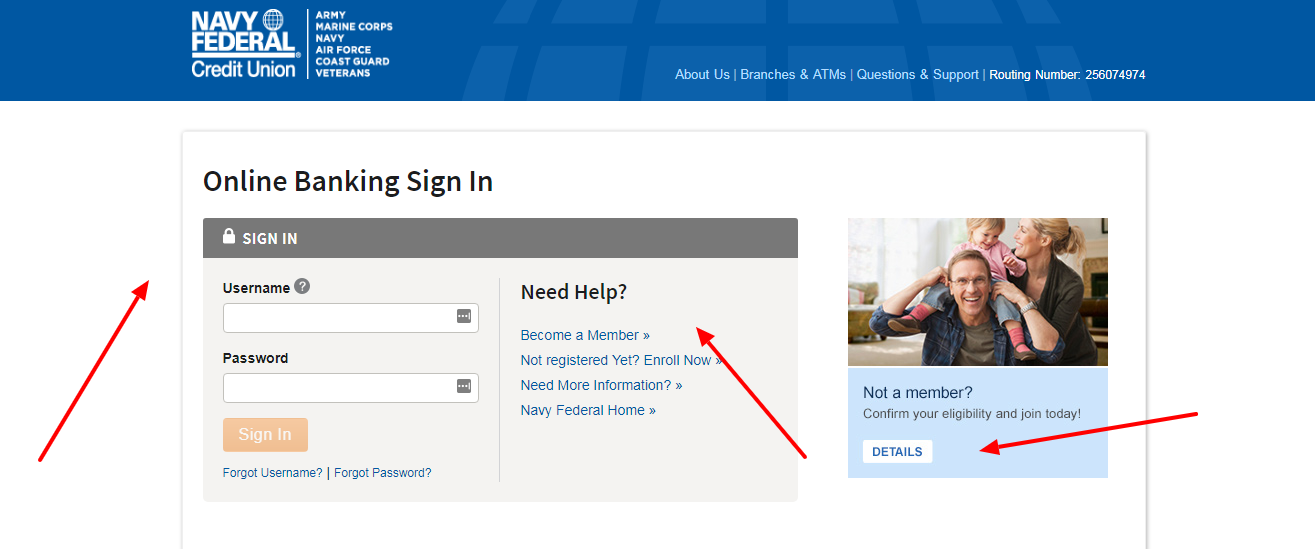
Navy Federal’s sign-in page provides Enroll in Digital Banking and Sign In Help. Current access uses a unique username, although Navy Federal notes that the username may still be an access number for some members. The Access Number remains useful for identification by phone or in a branch.
Use the official recovery process when the username or password is uncertain. Do not repeatedly guess or create another membership. Make sure the registered phone and email are current before requesting verification, and call 24/7 Member Services when automated recovery cannot identify the account.
- Start from Navy Federal’s current Digital Banking page.
- Choose Enroll only when online access has not been established.
- Use the requested membership and identity details.
- Create or recover the unique username.
- Create a strong password used only for Digital Banking.
- Request one verification code at a time.
- Confirm the cashRewards Secured card appears after access opens.
Payments, Autopay, and Rewards
Navy Federal Digital Banking and the mobile app provide the current card account, payment and reward views. Navy Federal says cashRewards Secured cash back can be checked and redeemed through Online Banking or the app 24 hours a day.
Automatic payments use a selected amount on the same day each month. Before submitting a manual payment, verify the account ending, amount, date, funding account and any existing automatic instruction. Save confirmation and check pending or completed status before trying again.
- Open the current cashRewards Secured card.
- Read the statement balance and minimum due.
- Check the due date and selected payment date.
- Verify the funding account and any automatic payment.
- Submit a manual payment only once.
- Save the confirmation and check payment status.
- Open the rewards area to review or redeem available cash back.
Freeze, Replace, and Protect the Card
A temporarily misplaced Navy Federal card can be frozen in Digital Banking or the mobile app. Freezing blocks that card number while it is located, but it does not report a card as lost or stolen and does not report unauthorized transactions.
Call Navy Federal immediately for a lost or stolen card, suspicious activity or fraud. Navy Federal says replacement plastic normally arrives within 7–14 business days and a digitally issued card may be available while waiting.
- Select the matching credit card and open Manage Cards.
- Freeze a temporarily misplaced card.
- Unfreeze it only after it is safely recovered.
- Review activity for unfamiliar transactions.
- Call immediately if the card is lost, stolen or compromised.
- Ask whether a digital replacement is available when needed.
- Update recurring payments after the card number changes.
Known Issues & Common Problems
nRewards is missing: Look for cashRewards Secured. Navy Federal renamed nRewards and converted its reward format on April 2, 2025.
Username is rejected: Use Sign In Help to recover the current username; an Access Number may still be used by some members but is not always the saved username.
Verification code does not arrive: Request one code, check the registered contact method and call Member Services when contact details are old.
Payment is not visible: Check pending and completed activity plus the confirmation before submitting another payment.
Cash rewards are missing: Confirm eligible activity and the converted account, then contact Navy Federal about the specific reward balance.
Card was lost: Freezing alone is not a lost-card report. Call Navy Federal immediately so the card can be blocked and replaced.
Navy Federal nRewards Credit Card Log In problems usually involve the 2025 cashRewards Secured rename, an uncertain Digital Banking username, or confusion between freezing and reporting a card. Confirm the current product and account ending first.
Troubleshooting Tips
- Start from Navy Federal Digital Banking.
- Look for cashRewards Secured instead of nRewards.
- Match the card ending with the newest statement.
- Use Sign In Help for username or password recovery.
- Request one verification code at a time.
- Check pending and automatic payments before retrying.
- Review the cash-rewards area after the product conversion.
- Freeze only a temporarily misplaced card.
- Record the exact error and last successful step.
- Call 1-888-842-6328 when access, payment or card security remains unclear.
Separate product-name, sign-in, payment, rewards and card-security questions. Change one thing at a time and never create a duplicate payment or account while status is uncertain.
Security Tips
- Type the Navy Federal address yourself.
- Never share a password, PIN or verification code.
- Approve only devices and sign-ins you initiated.
- Use a unique Digital Banking password.
- Turn on useful account and card notifications.
- Freeze a temporarily misplaced card promptly.
- Review statements and unfamiliar transactions.
- Report fraud or a lost card immediately.
A caller can know the Navy Federal or nRewards name without representing the credit union. End unexpected contact and call Navy Federal through its published 24/7 number.
Contact Customer Service
- 24/7 Navy Federal Member Services: 1-888-842-6328.
- Lost card, fraud, or suspicious activity: call 1-888-842-6328 immediately.
- cashRewards Secured rewards service: 1-800-381-9042.
- Account-specific written help: sign in and send a secure message.
Tell support whether the problem concerns the nRewards conversion, Digital Banking, payment, rewards, card freeze or fraud. Provide the account ending when appropriate, but never a password or verification code.
Related Login Guides
Frequently Asked Questions
Where is Navy Federal nRewards Credit Card Log In?
Use Navy Federal Digital Banking and select the cashRewards Secured account that replaced nRewards.
What happened to the nRewards card?
Navy Federal renamed it cashRewards Secured on April 2, 2025 and changed rewards from points to cash back.
Were existing nRewards points lost?
Navy Federal said existing points would be converted to an equivalent cash-rewards balance.
What does cashRewards Secured earn?
The 2025 conversion notice says the account began earning 1% cash back per $1 of eligible net purchases.
Can I use the Navy Federal app?
Yes. Select the current credit card for balances, payments, rewards and Manage Cards controls.
How do I recover my username?
Use Sign In Help on the official Digital Banking page; Navy Federal notes that some usernames may still be an Access Number.
How do I make a payment?
Select cashRewards Secured, verify amount, date, funding account and autopay, submit once and save confirmation.
Can I freeze a missing card?
Yes, for a temporarily misplaced card. Freezing does not report it lost or report unauthorized activity.
How do I report a lost or stolen card?
Call Navy Federal immediately at 1-888-842-6328, available 24 hours a day.
How long does a replacement card take?
Navy Federal says a replacement plastic card normally arrives within 7–14 business days.
Summary
Navy Federal nRewards Credit Card Log In now uses the cashRewards Secured account in Navy Federal Digital Banking. The April 2, 2025 change converted points to cash rewards. Use the current username, verify every payment, freeze only a temporarily misplaced card, and call Navy Federal immediately for loss or fraud.
Independent guide: This is an independent informational guide. It does not provide a login form, does not provide direct login links, does not request passwords or credentials, and does not collect banking data. Use the credit union’s official website, app, phone, or support channels directly for account access.
Last Updated on July 28, 2026
URL: https://log-in.me/credit-card/navyfcunrewardscreditcard/